Don’t fight the system — create a new one

You never change anything by fighting the existing. To change something, build a new model and make the existing obsolete.

— Buckminster Fuller

A friend of a friend is a priest in a progressive area. He is very innovative in his methods to help people in his community who are in need. 

In cases of injustice, his attitude is to not fight the system, because that just causes the system to entrench further and — worse — it defines what you’re doing in terms of the system. The established system controls the terms of the debate.

Instead, he prefers to create his own system, with its own approaches and strategies. If you create a new system that is in integrity with your values, and it produces better results than the old system, then you (and maybe others) will use the better system more often. The new system takes over without a struggle and the old system loses its authority. No battles are needed, only preferences expressed.

It takes more creativity and courage to work this way. You are deliberately stepping outside everyone’s boundaries of certainty into the chaos of uncertainty. Yet, it’s from that chaos that new, creative thinking arises.

Bringing this down to the level of my obsessions, I see old systems at work in the self-improvement realm with established diets, fitness regimens, productivity, etc. New systems come along — like the Bullet Journal — to become established systems in their own right. 

I have tended to follow established systems due to the lure of the “sure thing,” only to often experience mixed results. I’m glad I did them, because I learned more about the domain and how I operate within those rules. And sometimes, that system produced exactly the results I wanted.

But in other areas, I think I may be better off walking in uncertainty and seeing what new thinking emerges.

DSL woes v — The End (…for now?…)

I made a few changes a week ago when the connectivity was poor. I basically reset everything to zero — no customizations, no trying to tweak performance. I did this so that, if I called Frontier tech support after the weekend, I could tell them the system was running as specified by them. I did not want anything in place that they could object to.

  • On the modem, I reverted the DNS server URLs to the ISP defaults.
  • On the Airport, I cleared the custom DNS server URLs (going to CloudFlare and Google Public DNS). The Airport is now using the ISP defaults.
  • On the Airport, I reverted the wifi channels back to Automatic.
  • I unplugged the Airport, then unplugged the modem, let them sit idle for a while, plugged in the modem, let it boot up and connect, and then plugged in the Airport. (Not sure I got the order right there, but that’s what I think I did.)
  • I also got a 1-foot cable to connect the modem to the DSL jack. I had a 10-foot cable before. I don’t believe the length of the cable has anything to do with connection speed, but again, I wanted to remove any objections that Frontier tech support might have had to my setup. In my magical-thinking mode, the long looped cable may have picked up interference from the ancient power strip I use or maybe other cables it rubbed against. Anyway — no problems with old, long cords.

Within a day or so, the connection stabilized. I still check Speedtest and Fast.com and the speeds are variable, but I more often see 1.5-2.5 Mbps than not. That’s better than before, believe or not. Liz reports experiencing slowdowns when she works from home but the system does not fall over.

Network Logger Pro has recorded no total outages and far fewer DNS outages.

Did all my spells and incantations help? Or was it just the Frontier network going through a little crisis of faith and now it’s back on its feet thanks to the love and support of its family and friends? We may never know. 

I do know that this latest round of self-reflection and meditation forced a few beneficial changes to our physical netowkr setup, and the connection is back to “good enough” (i.e., no more than two pauses, if any, while streaming Netflix to the Apple TV). 

I will continue to run Network Logger Pro for another week and Speedtest when I am suspicious.   But no more active tweaking of the system unless I encounter a real problem.


Alan Ayckbourn: Advice from Harold Pinter

I think Norman’s background is deliberately sketchy – I’m less interested in his genesis than his impact. Blame my mentor at the time, one Harold Pinter, who directed me early on when I was playing Stanley in his deliberately opaque The Birthday Party. I too was mystified as to where my character had come from or even, after the play had ended, where on earth he went. So I asked him. Harold looked at me for a second and then gave me the immortal note, “Mind your own fucking business.” I sort of knew what he meant and, after over 40 years of directing, it’s one I rather wish I’d had the courage to give at times!

We recently finished a rewatch of the 1977 TV adaptation of The Norman Conquests by Alan Ayckbourn. The three plays make a great weekend of viewing for Friday, Saturday, and Sunday nights. We watch them every 5 or 6 years; the familiarity is there, but the details have been forgotten so there are always fun little surprises. The acting and comic timing is crystal-perfection.

How to Clean Your Gmail Autocomplete List • Productivity Portfolio

When I was at UNC for a couple years I sent and received emails from my Gmail account to lots and lots of people I will never see or hear from again. 

This was annoying me recently, when I had to ignore lots of obviously irrelevant-to-me-now email addresses. Where was Gmail finding this stuff — from my old emails?

In a way, yes. The Productivity Portfolio explains that Gmail creates a new Contact record for every email you receive from or send to someone. The workaround is to find the Contact record and delete it. 

Very handy to know, particularly for when friends change work addresses.

Creating random passphrases for stronger passwords

At home on my iMac, when I need to create a strong password, I use 1Password’s generator, specifically where it generates a string of random words. The longer the passphrase, generally, the harder it is to crack.

But I don’t have 1Password on my Windows computer at work. And I like to mix things up also. 

Prior to using 1Password, I used a Diceware passphrase. Throw five dice to generate a totally random 5-digit number. Match the number to the list of 7,776 short words or word-tokens, and you have a long password that is easier to remember and type, while harder to crack. 

Since I don’t have five dice, I used Random.org’s dice-throwing routine, either from its website or iPhone app.  

So throwing 15152 gives you “brawl,” 26232 is “fork,” and so on. Separate five or six words with a non-alphabetic character, begin or end with a number or !@#$^*(), and I have a strong password that’s also easy to type on a mobile keyboard. 

Diceware’s was admittedly an odd list, with some obscure words, numbers, single letters (g), single letters with apostrophes (g’s), or very short “words” (fy) that do not add to the passphrase complexity and are hard to remember on their own. 

Into the breach steps the Electronic Freedom Foundation’s new wordlists to create random passphrases. The long word list is now composed of full recognizable words, without apostrophes, and that are easy to remember and spell. 

The EFF’s page has all the information on the reasoning behind the new list along with shorter lists that use only four dice. It also links to the classic XKCD comic explaining the benefit of long passphrases.


Windows: My startup.bat file

Situation

  • I use a Windows 10 system at work.
  • I have a set of programs I’d like loaded all at the same time so I don’t have to click click click every morning to start them.
  • The company provides the laptop. The laptop loads lots of necessary networking and security programs as Windows boots up. I don’t want the programs I load to interfere with them.
  • The standard way to start these files is to put their shortcuts into Windows’ Startup folder in the Programs group. But the Startup folder went missing from Windows 10’s Start menu.
  • I can find the Startup folder anyway. Nice try, Microsoft!
  • But if I load the folder with tons of shortcuts, then they all get loaded one after the other, higgledy-piggledy. In the old days, Windows preferred staggering program loads so they weren’t all contending for resources at the same time. Not sure how Windows manages it nowadays, but I like the neatness of loading apps one at a time.

Solution

  • As ever, the humble batch file. (See the Resources at the end of this post.)
  • It’s simple enough to find the location of the executables I want to run, but I also wanted to add a pause of 5 seconds between each loading. That gives Windows time to dedicate any resources needed to load the program, and then free up any resources it needs to load the next program.
  • After hunting around on the InterWebz, I found a command to do just that. It’s explained in the code excerpt and a link in the Resources.
  • I keep helper files like this in a special directory for my batch files. I create a shortcut of the batch file and put the shortcut on my desktop. Not necessary, I guess, but I prefer keeping shortcuts and not active files on my desktop.

How I use it

  1. I boot up the laptop and let the company-approved programs load and do their thing.
  2. After that activity has quieted down, I double-click the batch file shortcut on my desktop.
  3. After the batch file finishes running, I start my workday.

My startup batch file

@echo off 

:: source: https://www.computerhope.com/issues/ch001678.htm 
:: to add a pause, insert CHOICE /N /C YN /T 5 /D Y >NUL 
:: Using the choice command included with these versions of Windows you can delay a batch file anywhere from 0 to 9999 seconds. 
:: In this example, we illustrate a five-second delay. If you want to increase or decrease this time change the "5" to a different value. 


:: evernote 
start "C:UsersuseridAppDataLocalAppsEvernoteEvernote" Evernote.exe 

CHOICE /N /C YN /T 5 /D Y >NUL 

:: firefox 
start "C:UsersuseridAppDataLocalMozilla Firefox" firefox.exe 

CHOICE /N /C YN /T 5 /D Y >NUL 

:: outlook 
start "C:Program Files (x86)Microsoft OfficerootOffice16" OUTLOOK.EXE 

CHOICE /N /C YN /T 5 /D Y >NUL 

:: workrave 
start C:UsersuseridDocumentsApplicationsWorkravelibWorkrave.exe

References

Surviving the Ordinary: Why We Need Memoirs of Regular Lives | Literary Hub

So why do we need this book?

Mary Laura Philpott’s article looks at books of the ordinary lives that most of us lead: birth (or not), love (or not), marriage (or not), and death (oh yes). As much as the sensational books grab our attention, it’s the quieter books about quieter lives that can speak more loudly to us.

I have read to Liz before her bedtime for many years, and we’ve found that the best books for that are memoirs of ordinary people, but with a twist of some kind.

 Philpott worries for her own book of memoirish essays and whether its normality will speak to readers. Her hope for why readers may find it of interest rests on the concept of “relatability.”  

People come in all the time seeking not just an entertaining read, but (sorry, here comes that word) a relatable one. They pull down books in which they find some version of themselves as they are now or were in the past or hope to be one day. They start out seeing themselves in others; then they see the other in themselves; then they’re able to see themselves and their own futures differently. I’d say these books transform people, but it’s more that the books help people along while they are already transforming.

Perhaps. I would say instead that way down deep, in a place before words are formed, we know that we are all connected, we are all One Self. A good ordinary memoir cracks open the door to that place and reminds us of that truth.  

DSL woes iv

Still getting frequent, brief DNS outages. The speed is noticeably slower for long periods, but with a few periods where we get close to our provisioned speed. The connection is more stable than it was before Saturday’s visit. We have not had any periods of complete downtime.

I am close to saying that this is about as good as it will get.

So, as my friend Peter is fond of saying after a grinding life event: What have we learned from this? 

Do as much work as I can to define the problem before I call tech support

I’m fortunate that our setup is simple: a DSL jack, a modem, the Airport Time Capsule. It was easy for me to directly hook the iMac to the modem so that I could tell tech support it was not the wifi. I left them no room to argue about wifi settings; when we deal with a wired connection, the troubleshooting is much simpler.

Use tools to gather evidence

Using Network Logger Pro, I collected a week’s worth of outage data to prove to Frontier that we had a problem and that it was not my equipment causing it. 

Also, using Speedtest (the web site or the app) to do spot checks helped because that’s what Frontier tech support uses. 

I like having logs and data showing that I’m getting x number of outages and only y mbps at specific times of day. Anecdotal “It just feels a lot slower” evidence does not help anyone.

The modem itself has its own stats and logs, also, but they’re way more technical and I’m not sure they’d do me much good.

Accept that what I can do is limited

Rebooting the modem and/or router is the universal antidote because it solves most common ills. But for us, rebooting worked until it didn’t. Getting rid of an ancient DSL filter and upgrading to a new modem helped. Hardware-wise, that was about it.

Of course, you can input different DSL addresses but that’s no guarantee that the situation will change (and if you don’t flush the DNS cache, then it may take a day or a reboot for the changes to take effect). I’ve also read that your ISP’s default DNS servers may even be faster sometimes.

For wifi, you could use some tools to maybe find some less-crowded channels or change the router’s DNS addresses, but again — that’s about it. The change in speed could be noticeable, but I think most likely the bump will be slight.

Beyond these simple tactics, I believe what I can physically do to improve a connectivity or outage problem is limited. Networking is arcane, dark-magic stuff; I chose to stop my research with SN ratios and Line Attenuations because it was clear to me that going deeper was not helping my understanding or the situation.

Call the ISP’s tech support and get a trouble ticket

In the end, it came down to me calling the ISP, being persistent in making my case, and getting a trouble ticket. Once I had that trouble ticket, I was reassured that I’d get attention focused on the problem.

This takes time; maybe an hour on the phone with the first call, maybe a couple of hours with the technicians. I don’t believe there’s another way.

In all, we had three visits by four different Frontier technicians. And the final resolution was … to replace the modem. So it goes.

All the guys who came to look at the problem were knowledgeable and each advanced the game a little at a time (changing the DSL filter, rewiring the box, double-checking the modem’s settings). They have more sophisticated tools than I do to check the lines and they troubleshoot these problems all the time. So I relied on their experiences and instincts.

But …

Run Speedtest several times before the technician leaves

This was a great piece of advice I picked up in my researches and I kicked myself when I forgot to do this.

The technicians need to see for themselves whether their work made a difference. And until we agree there’s a positive change, then the ticket remains open.

In the end, it’s up to the ISP (and me)

The ISP controls all the hardware from the street to my house and they’re even responsible for the modem. 

My physical location from the switch, the wiring in my house — some things are beyond my control. But the things I can influence, I want to influence.

So the next time I start experiencing problems, I will gather evidence and then call them: Here’s what my logs are showing. What speeds should I expect, given our provisioning? What are Frontier’s parameters for acceptable performance, using Speedtest as a guide? How many outages, and for how long, does Frontier consider acceptable? Are there any settings I can tweak on my modem that would help?

It’s the ISP’s responsibility to ensure I get the speed and service I’m paying for. It’s my responsibility to be a partner in helping to solve the problem and to make sure the ISP does not stop focusing on the problem till it’s solved to my satisfaction.


How To Access The WiFi Scanner In macOS Sierra – Let’s Talk Tech

I was looking for a wifi scanner to check whether there were less cluttered wifi channels in our area. Specifying a less-populated channel can reduce interference and provide a more pleasing experience.

Lo, there is a Wireless Diagnostic utility included with macOS. It takes an Option key press on the wifi icon in the menubar to get to it, so it is definitely non-obvious — why does Apple hide this kind of thing? 

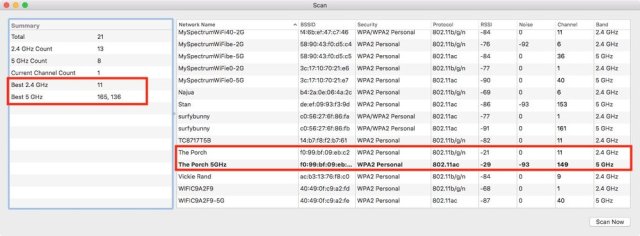
The instructions on Let’s Talk Tech page are clear and short. The utility told me the best 2.4 and 5 GHz channels to specify, and we’re trying them out now. So far, so good, though the 5 GHz recommendations seem to change whenever I check them. 

 The panel on the right shows all the wifi networks in our neighborhood, the wireless protocol they're using, the band (2.4 or 5 GHz) and, most important, their channels. The summary in the left panel recommends the best channels that  take advantage of less-populated bands.
The panel on the right shows all the wifi networks in our neighborhood, the wireless protocol they’re using, the band (2.4 or 5 GHz) and, most important, their channels. The summary in the left panel recommends the best channels that  take advantage of less-populated bands.